The Console Playbook Builder's Guide
If you work in IT or Operations, you already know that resolving a simple request can mean hopping between Okta, Jamf, Google Workspace, Slack, and ticketing tools. Console helps turn those repeatable workflows into natural-language automations called playbooks.
5 Playbook Modules
21 Screenshots
~30 min read
Simulation Validated
Safe Practice Tip
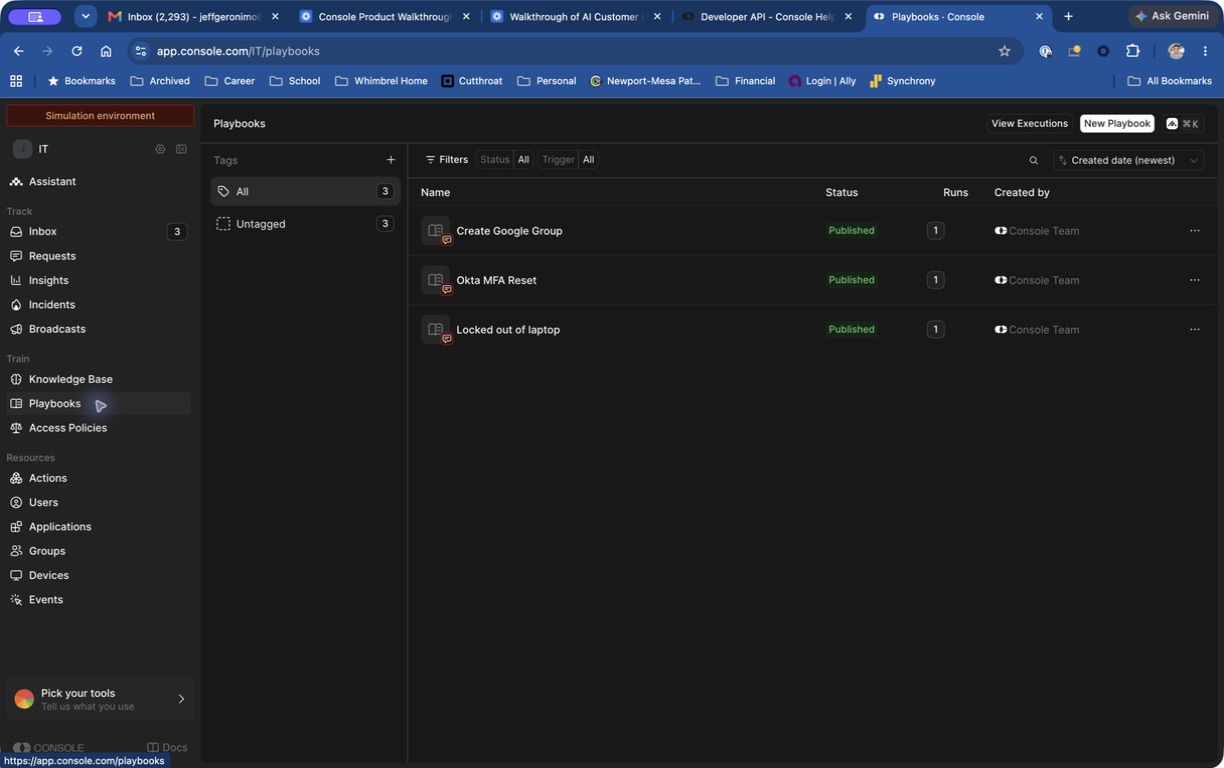
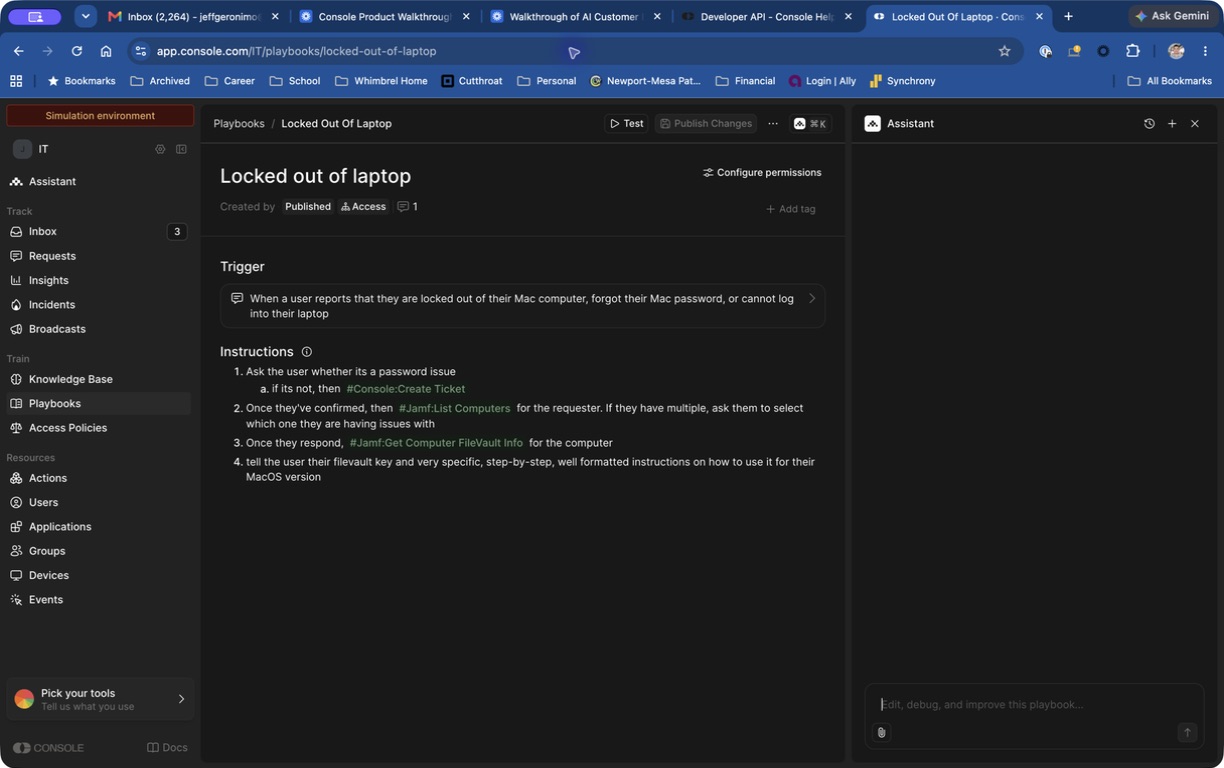
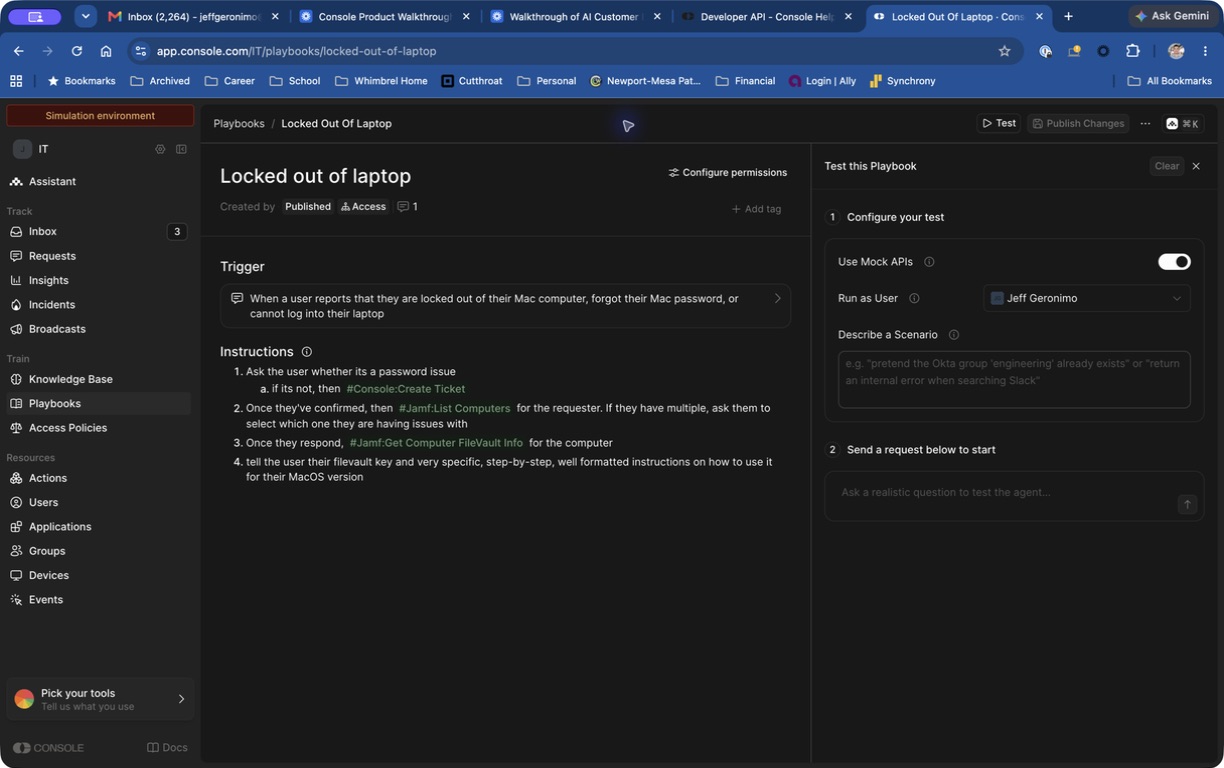
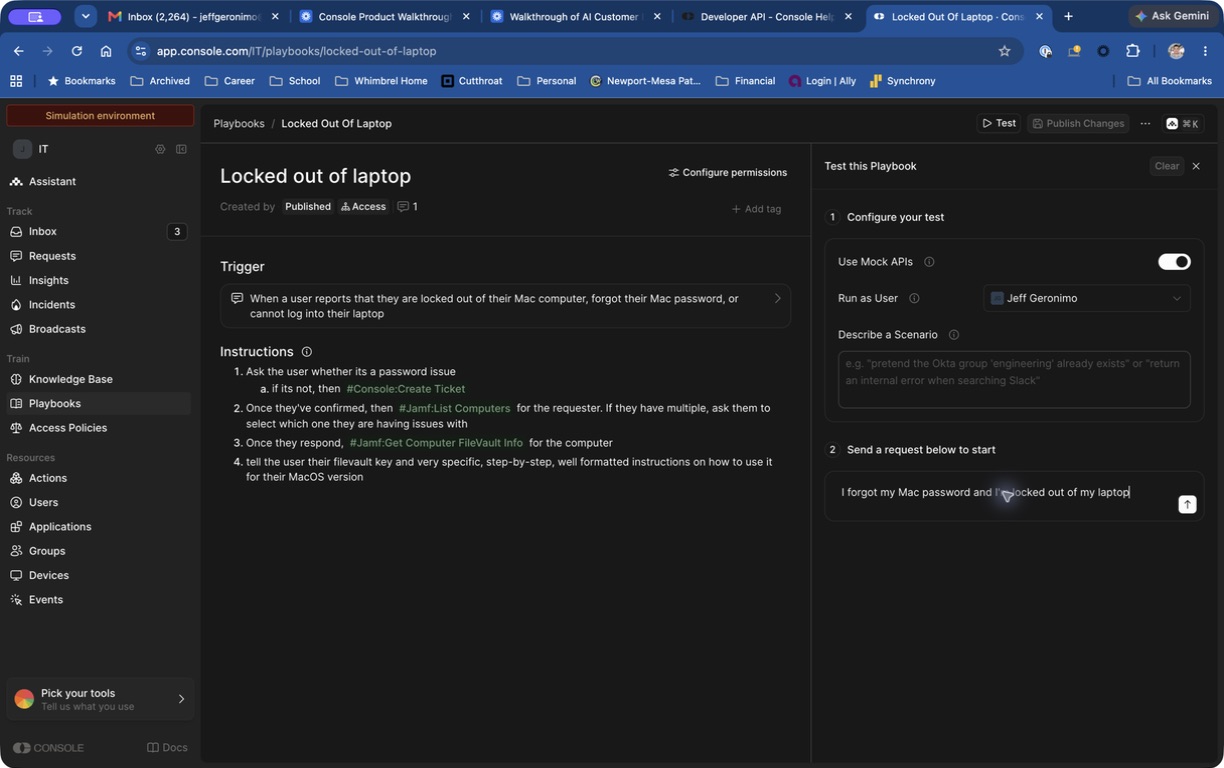
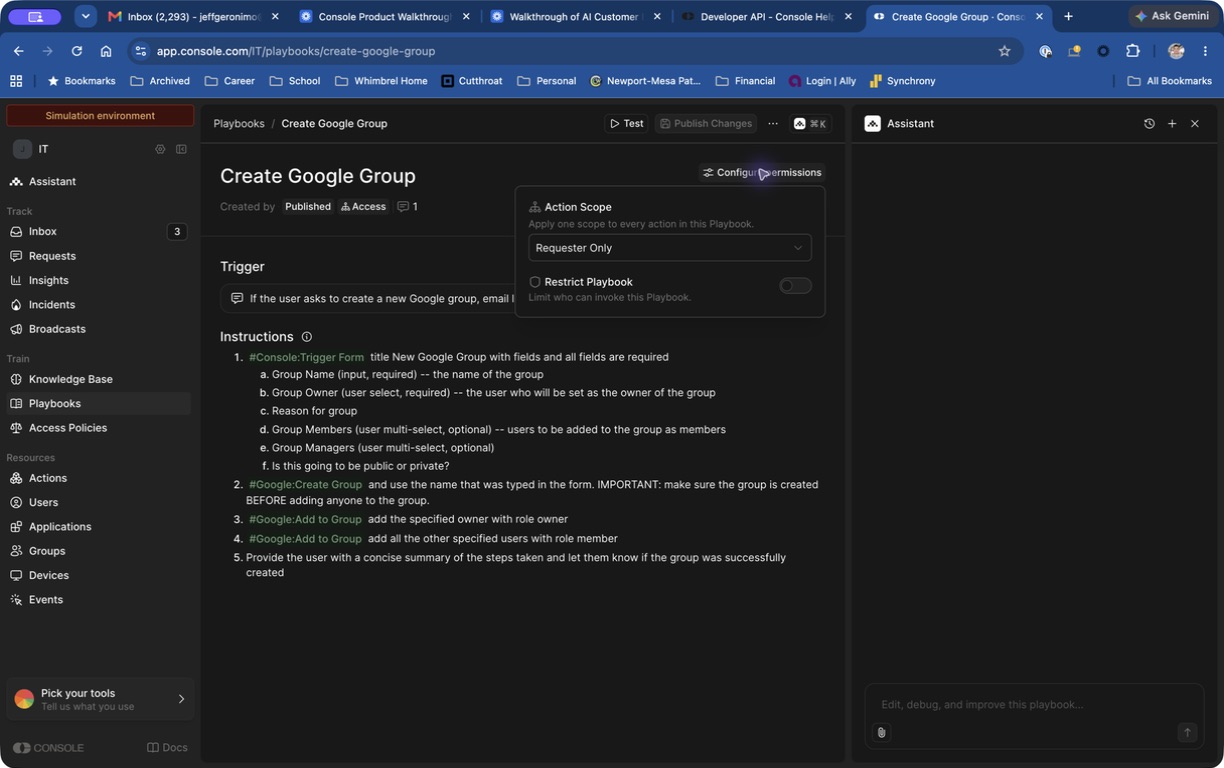
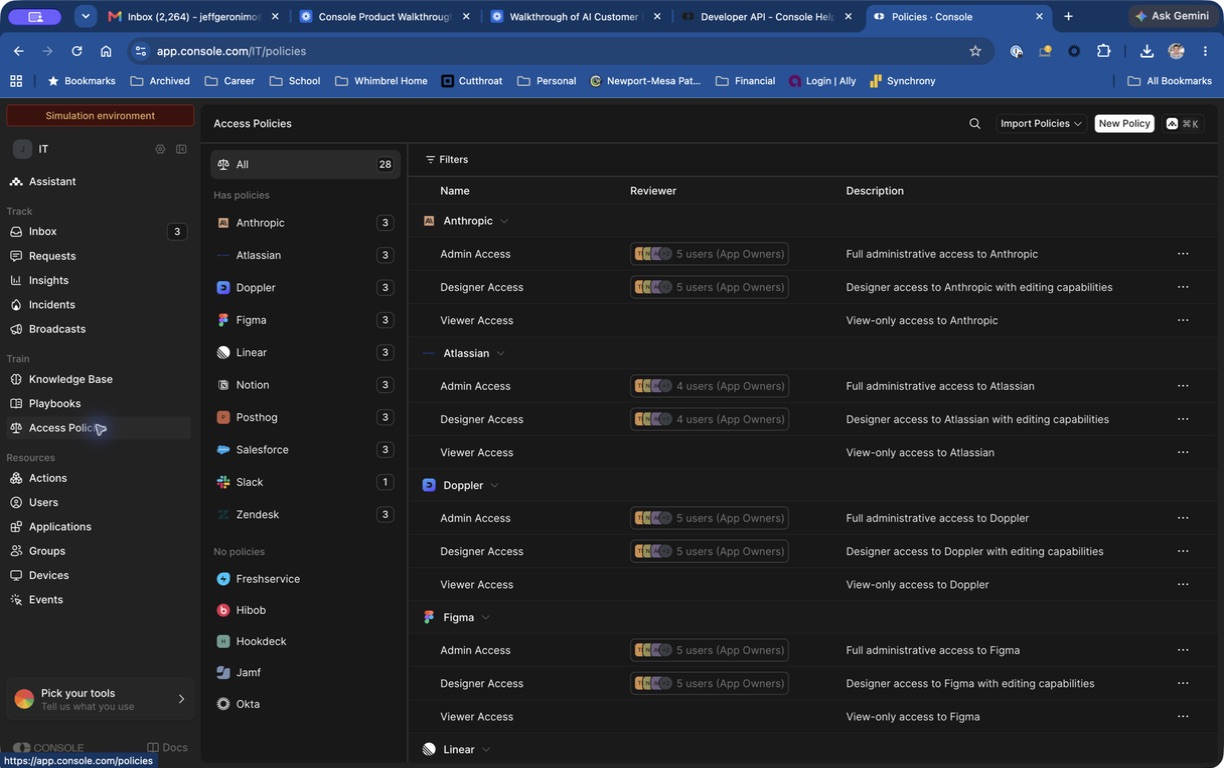
If you are learning in a test workspace, look for the Simulation environment badge near the top of the Console UI. In simulation mode, Console can use mock API responses so you can test workflows without changing production systems. A fresh simulation environment comes with three seeded playbooks: Locked out of laptop, Okta MFA Reset, and Create Google Group.
How Console Playbooks Work
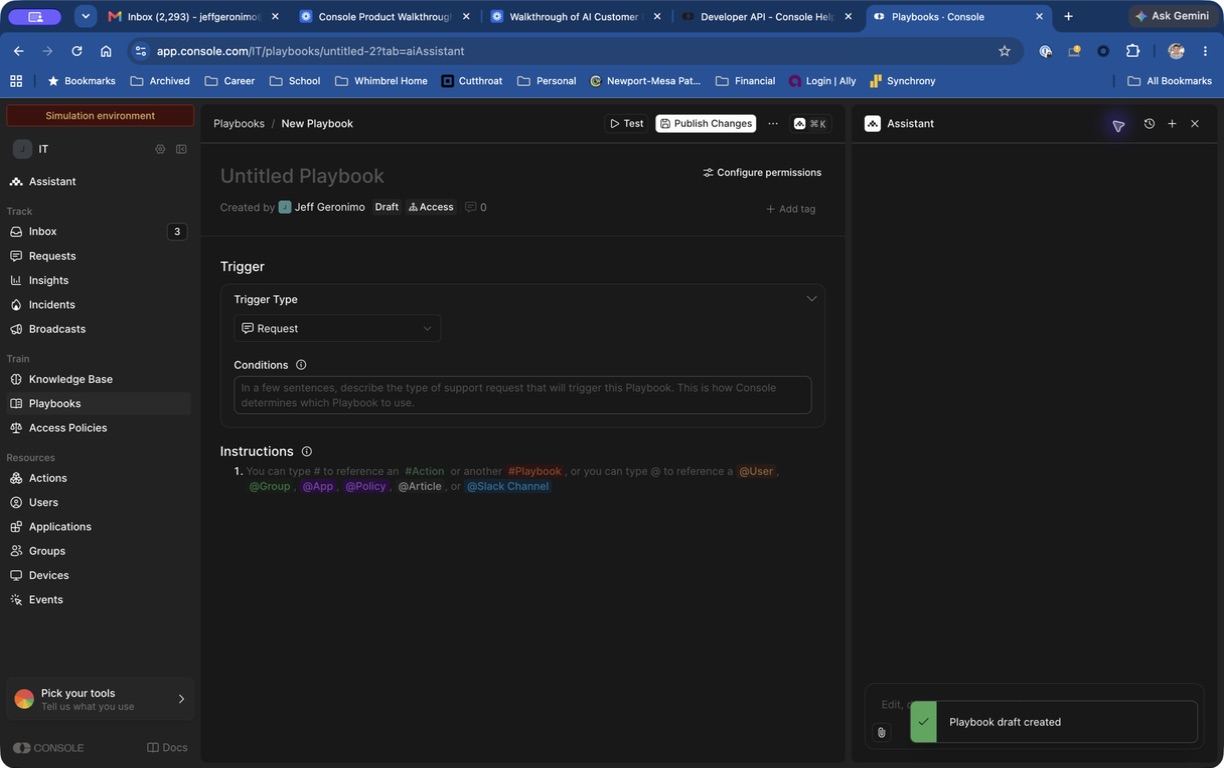
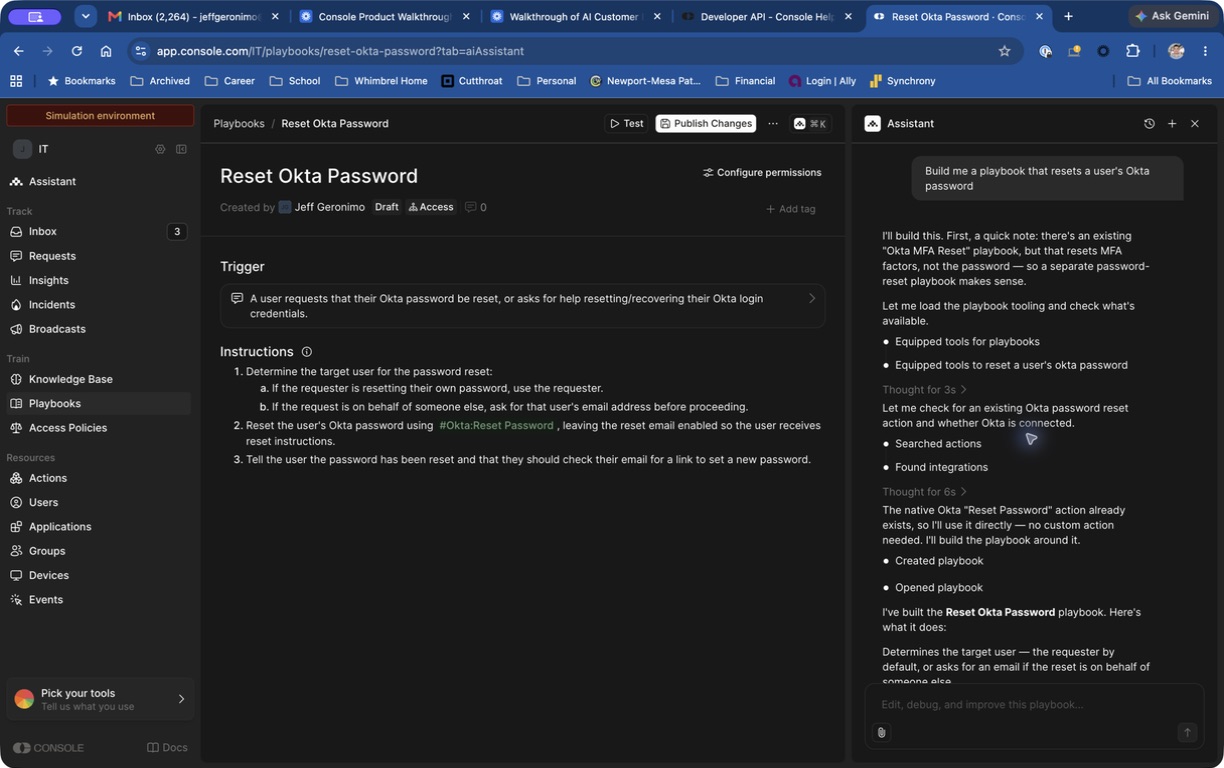
A Console playbook has three core parts:
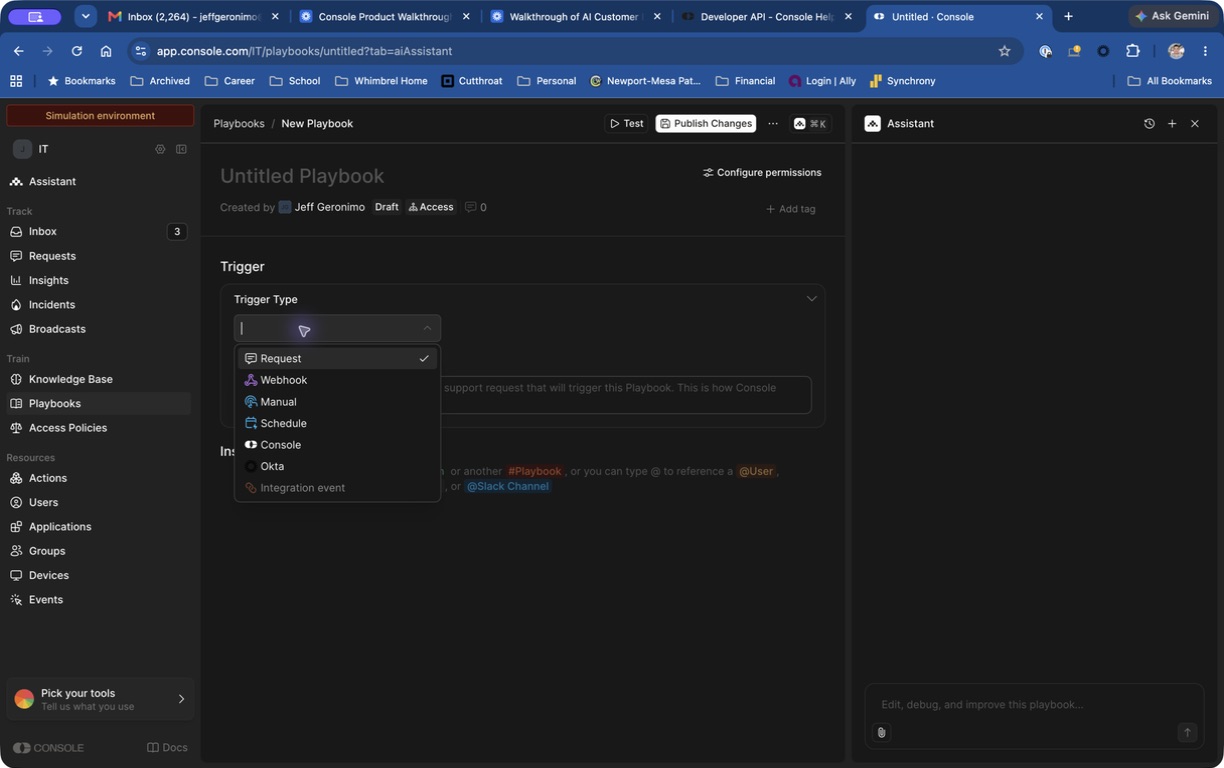
- Trigger — The plain-language condition that tells Console when this playbook should run. Example: "A user requests that their Okta password be reset."
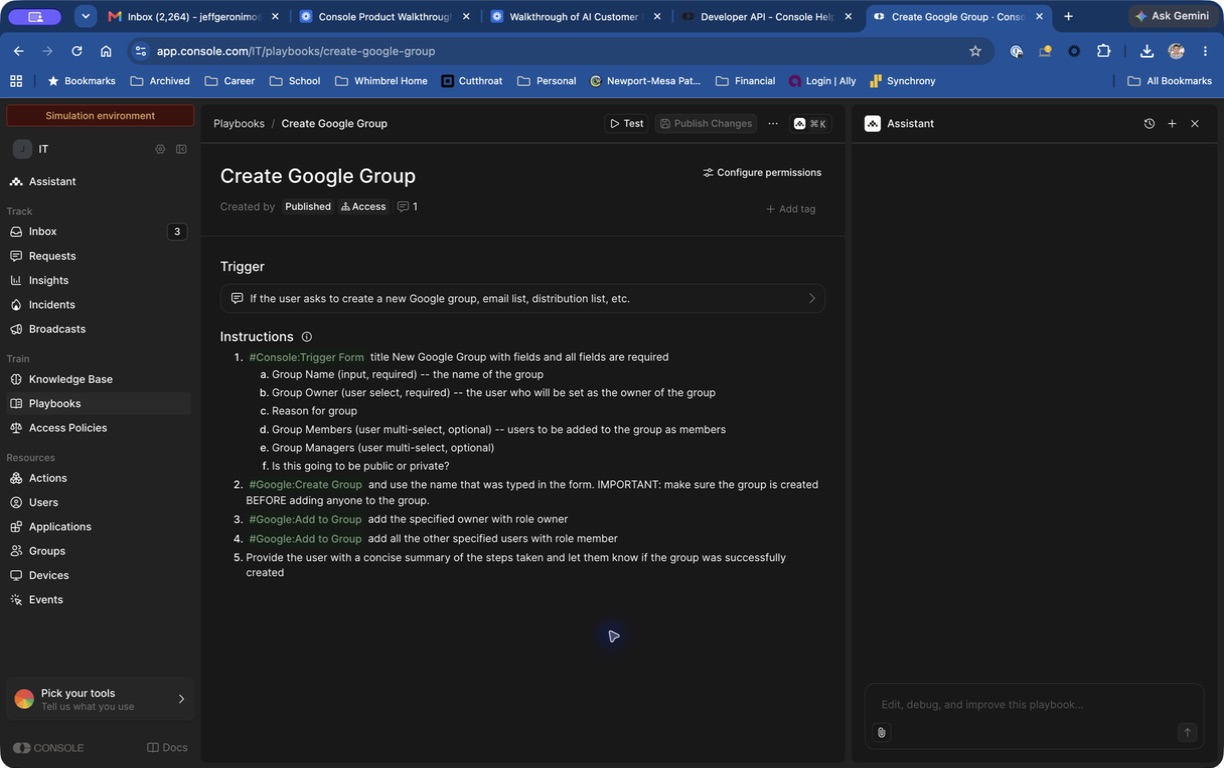
- Instructions — The step-by-step natural-language procedure the AI follows. These instructions can include decisions, clarifying questions, and action calls.
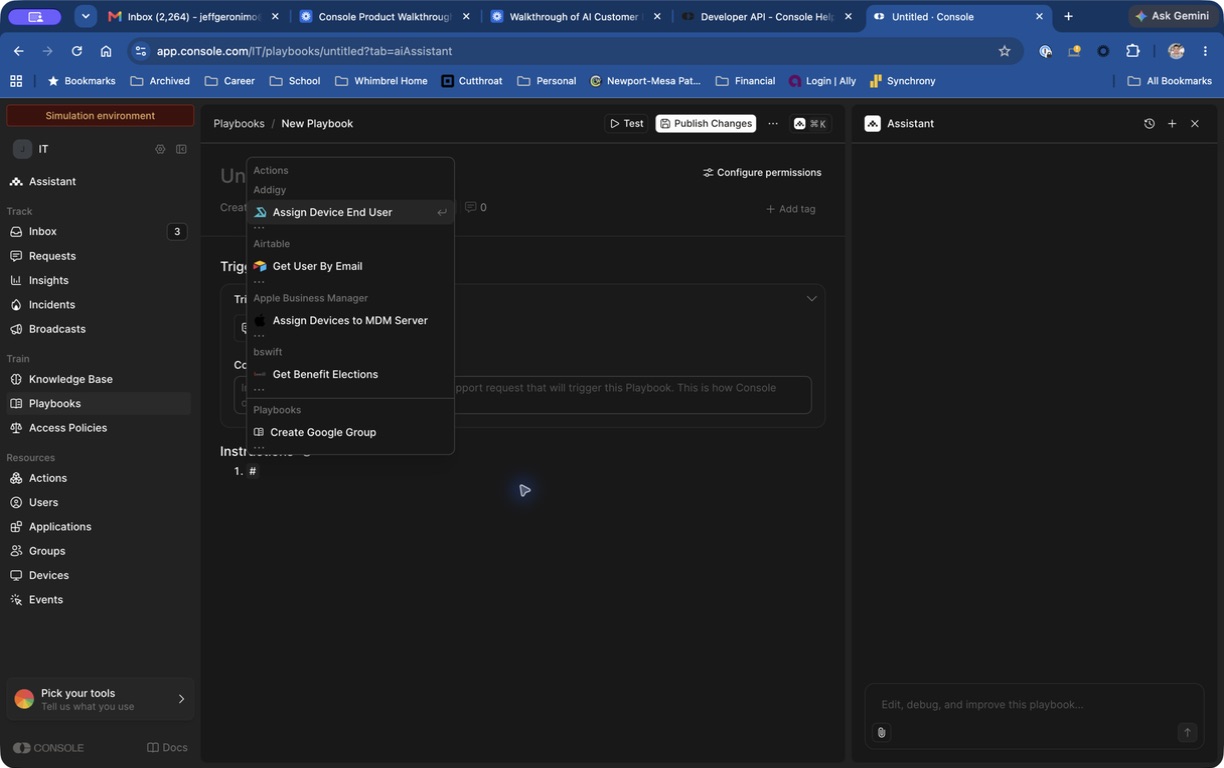
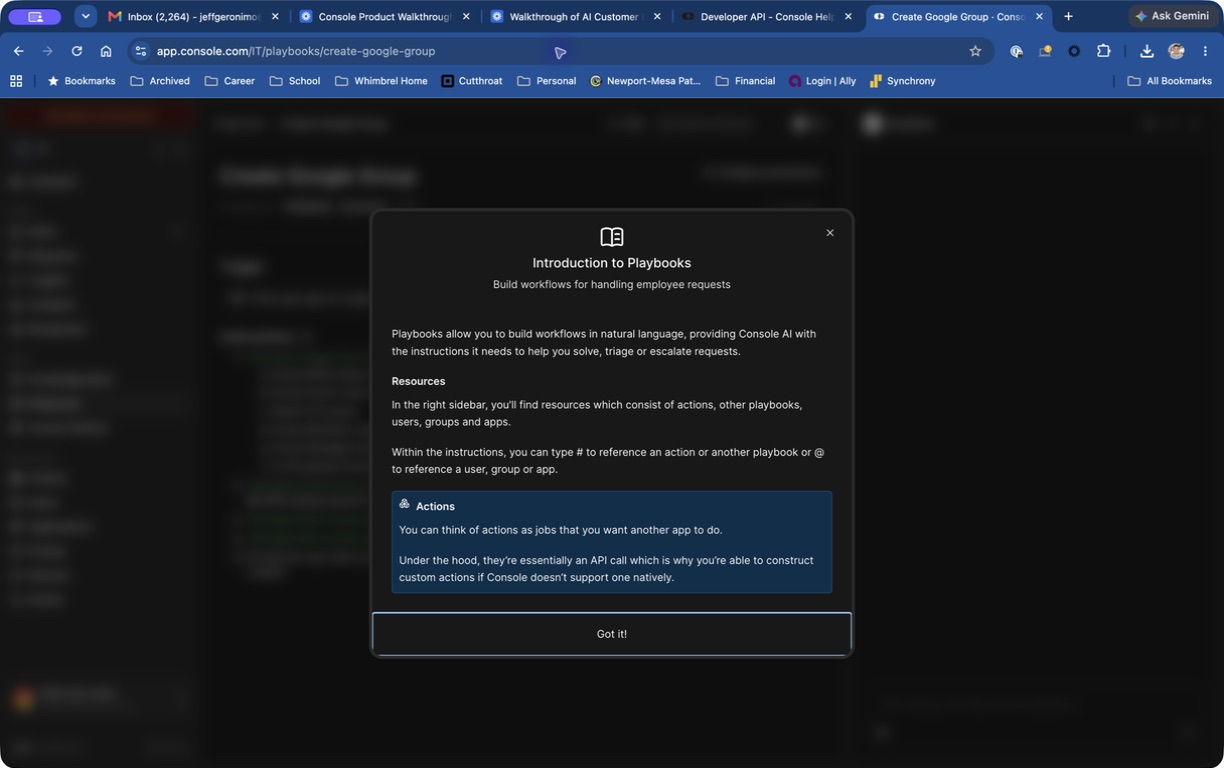
- Mentions and action chips — The editor lets you reference Console resources directly inside instructions:
- Type
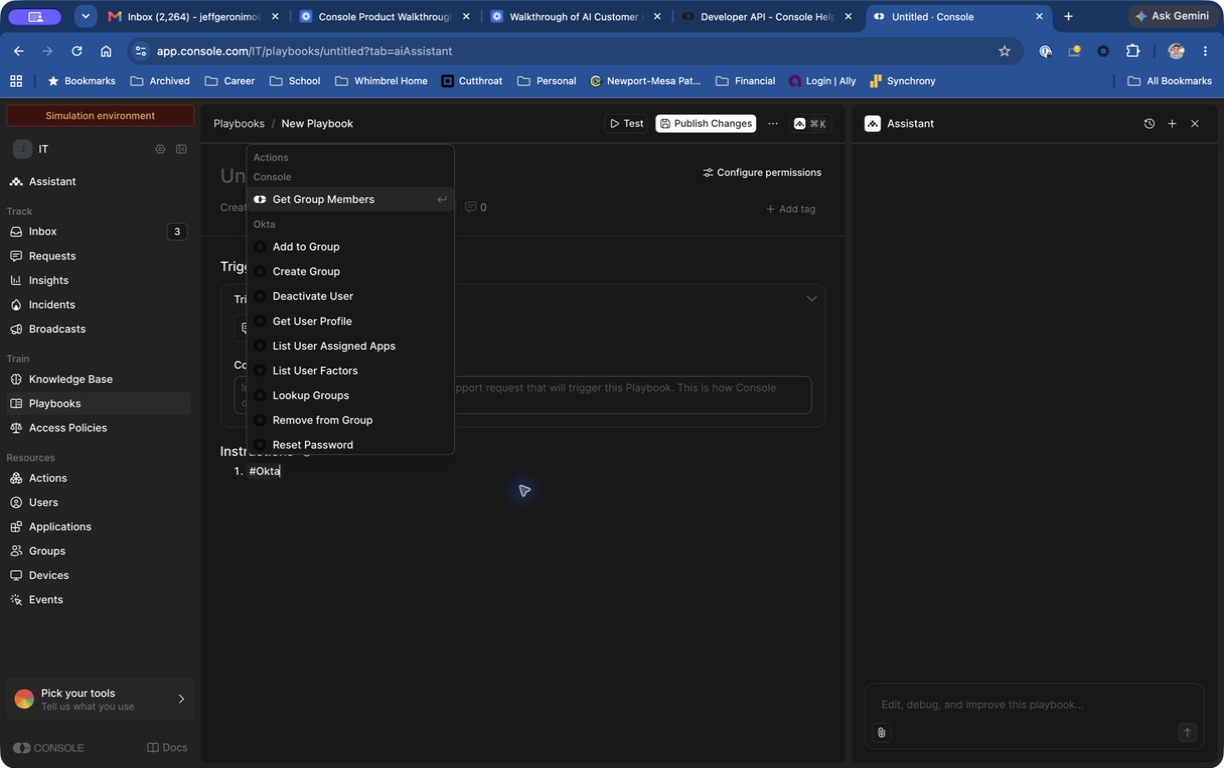
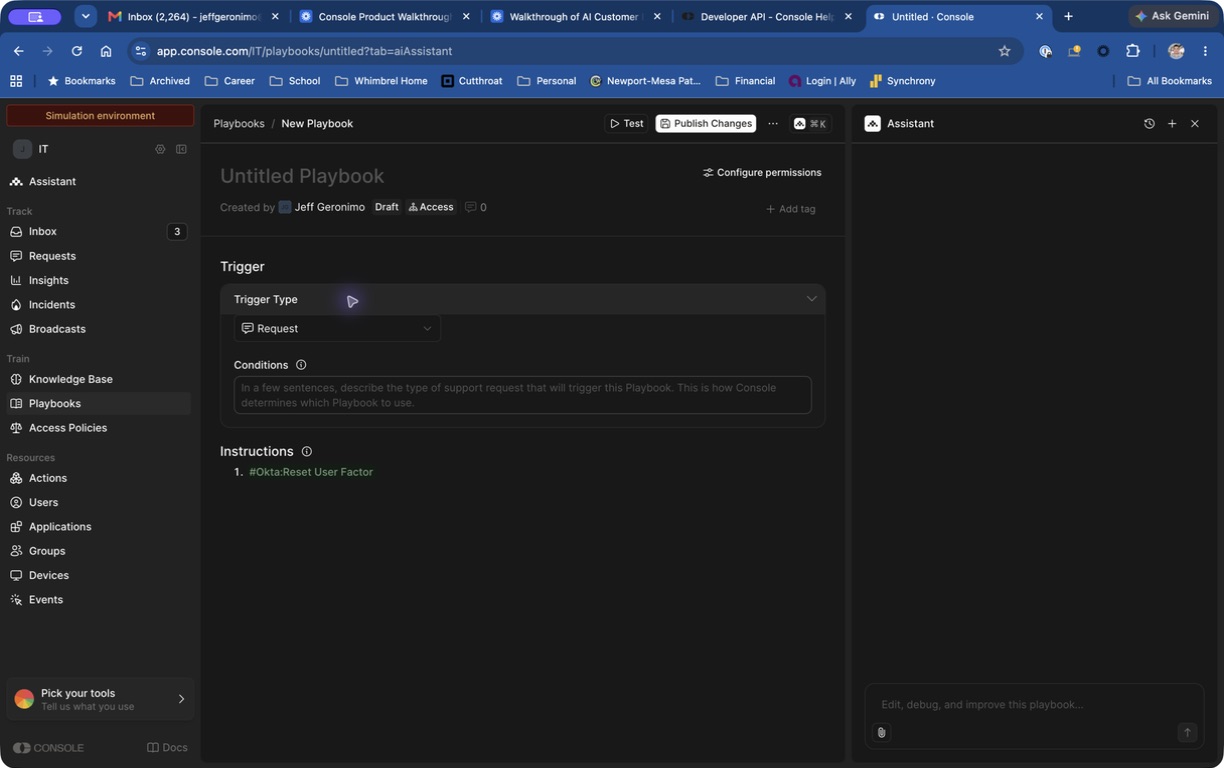
#to insert an Action or another Playbook, such as#Okta:Reset Passwordor#Jamf:List Computers. - Type
@to reference workspace resources such as users, groups, apps, policies, articles, or channels.
- Type
When you insert an action with #, Console adds it as an action chip. Clicking that chip opens configuration options such as Confirm with user and Require approval.
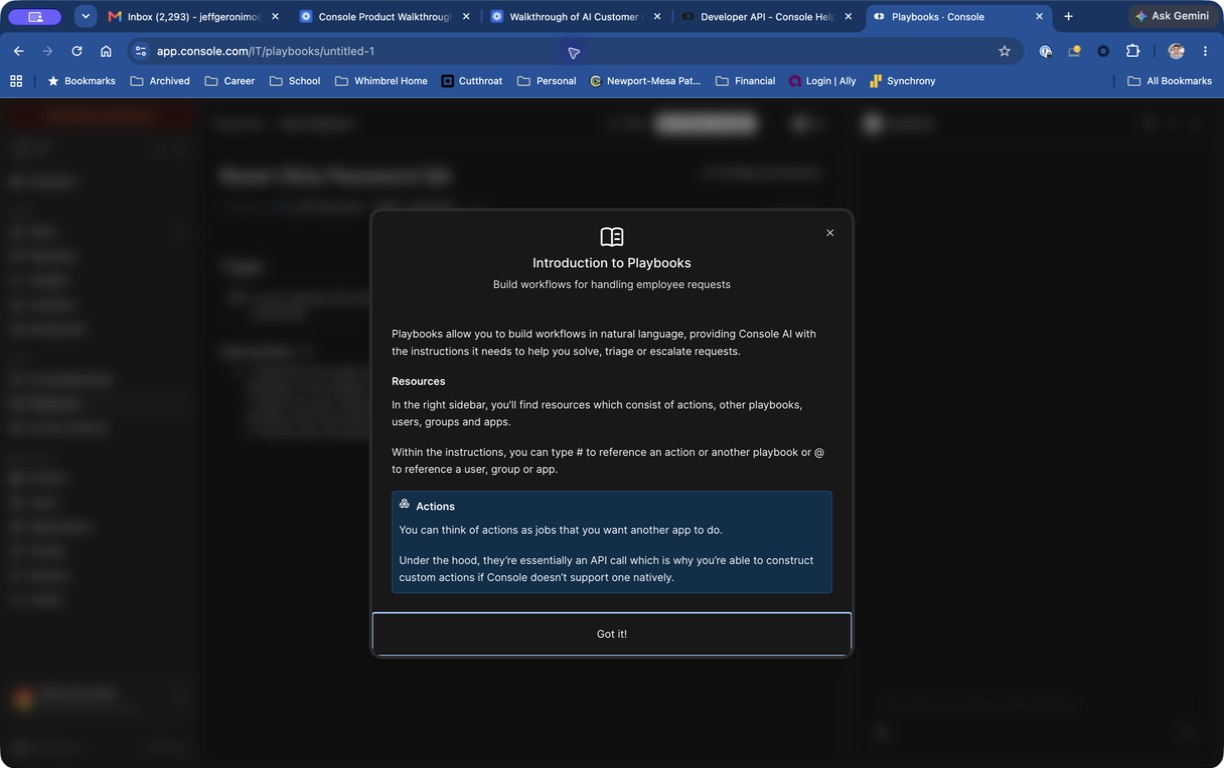
Figure 1: The "Introduction to Playbooks" modal appears the first time you open the Playbooks area. It explains how
# references actions and @ references resources. Click Got it! to dismiss it.